GitHub Basics — Remotes, PRs & Team Workflow
Connect local Git to real team workflows on GitHub: SSH vs HTTPS, remotes, fetch/pull/push, clone vs fork, pull requests, code review, branch protection, Issues, and how PRs trigger CI/CD.

Mustafa Tawab
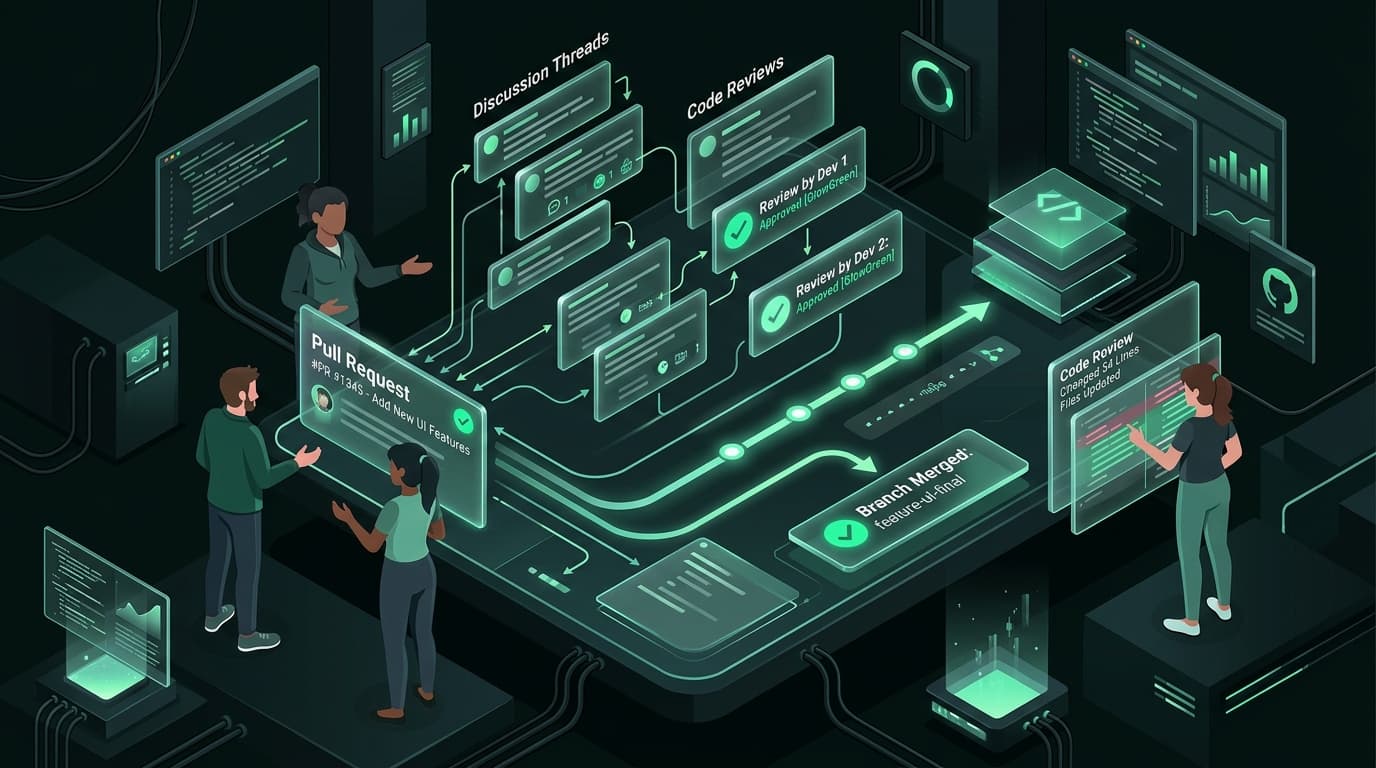
GitHub hosts your Git remotes and adds collaboration: Pull Requests, Issues, protections, and CI triggers. This guide connects local Git to real team workflows.
If you already know how to commit locally (see Git Basics), this is the next layer — getting that history onto GitHub and working with a team.
What GitHub Adds#
Git alone = history on one machine (or bare remotes).
GitHub adds:
| Feature | Purpose |
|---|---|
| Remote hosting | Backup + single source of truth |
| Pull Requests | Propose + review merges |
| Issues | Track bugs/tasks |
| Actions | CI/CD pipelines |
| Permissions | Who can push / merge |
| Releases / Tags UI | Version your software |
You (git commit / push)
        ↓
    GitHub repo
        ↓
  PR → Review → Merge to main
        ↓
  GitHub Actions (build/test/deploy)
Authentication (HTTPS vs SSH)#
HTTPS#
git clone https://github.com/user/repo.gitUses a Personal Access Token (PAT) instead of your account password when Git asks for a password.
SSH (recommended for daily work)#
- Generate a key (if you don't have one):
ssh-keygen -t ed25519 -C "you@example.com"- Start agent & add key:
eval "$(ssh-agent -s)"
ssh-add ~/.ssh/id_ed25519- Copy public key → GitHub → Settings → SSH and GPG keys → New SSH key
cat ~/.ssh/id_ed25519.pub- Test:
ssh -T git@github.com- Clone with SSH:
git clone git@github.com:user/repo.gitOptional ~/.ssh/config (same idea as SSH hosts on a Linux server):
Host github.com
    HostName github.com
    User git
    IdentityFile ~/.ssh/id_ed25519
Create a Repo & First Push#
On GitHub#
- New repository
- Name it, choose Public/Private
- Don't add a README if you already have a local project (avoids a merge conflict on first push) — or do add it if you're starting empty on GitHub only
From an existing local project#
cd my-app
git init
git add .
git commit -m "Initial commit"
git branch -M main
git remote add origin git@github.com:USER/REPO.git
git push -u origin main
-u sets upstream so later you can just run git push / git pull.
Empty GitHub repo → clone then work#
git clone git@github.com:USER/REPO.git
cd REPO
# add files, commit, push
Remotes Explained#
A remote is a nickname for a URL of another repo copy.
git remote -vTypical output:
origin  git@github.com:USER/REPO.git (fetch)
origin git@github.com:USER/REPO.git (push)| Term | Meaning |
|---|---|
| origin | Default name for "the" GitHub remote |
| upstream | Often used in forks = original project you forked from |
git remote add origin git@github.com:USER/REPO.git
git remote set-url origin git@github.com:USER/NEW.git
git remote remove origin
Fetch, Pull, Push#
git fetch — Download new commits from remote without changing your files. Safe preview.
git fetch origin
git log HEAD..origin/main --oneline    # what's new on remote?
git pull — fetch + integrate into your current branch (merge or rebase, depending on config).
git pull
git pull origin main
git push — Upload your commits to the remote.
git push
git push -u origin feature-login    # first push of a new branch
Rejected push?#
! [rejected] non-fast-forwardSomeone else pushed first. Fix:
git pull --rebase origin main    # or git pull
# resolve conflicts if any
git push
Don't force-push to shared main.
Clone vs Fork#
| Clone | Fork | |
|---|---|---|
| What | Copy repo to your machine | Copy repo to your GitHub account |
| When | You have access / own it | Contributing to someone else's project |
| Remote | origin → that repo |
origin → your fork; often add upstream → original |
Fork workflow:
# after forking on GitHub website
git clone git@github.com:YOU/project.git
cd project
git remote add upstream git@github.com:ORIGINAL/project.git

git fetch upstream
git switch main
git merge upstream/main          # or rebase
Open a PR from your fork's branch → original repo's main.
Pull Requests (PRs)#
A Pull Request asks: "Please review my branch and merge it into main (or another branch)."
Typical flow#
git switch main
git pull
git switch -c feature/add-healthcheck
# commit work
git push -u origin feature/add-healthcheck
On GitHub: Compare & pull request
Write:
- Title — clear, like a good commit message
- Description — what / why / how to test
- Link Issues if any (
Fixes #12)
Merge options on GitHub#
| Option | Result |
|---|---|
| Merge commit | Keeps all commits + a merge commit |
| Squash and merge | One commit on main (clean history) |
| Rebase and merge | Linear commits without merge commit |
Many teams prefer squash for feature branches.
After merge:
git switch main
git pull
git branch -d feature/add-healthcheck
git push origin --delete feature/add-healthcheck   # if not auto-deleted
Code Review Basics#
As author:
- Keep PRs small and focused
- Self-review the diff before requesting review
- Respond to comments; push fixes to the same branch
As reviewer:
- Check correctness, security (secrets?), and ops impact
- Prefer questions and suggestions over vague "fix this"
- Approve when ready to merge
DevOps-minded review questions:
- Will this break the pipeline?
- Are secrets in the diff?
- Dockerfile / compose / k8s changes intentional?
- Rollback plan if deploy fails?
Branch Protection#
On GitHub: Settings → Branches → Branch protection rules (for main):
Common rules:
- Require Pull Request before merge
- Require approvals
- Require status checks (CI must pass)
- Restrict who can push
- Do not allow force push
- Do not allow deletion
This protects production history and enforces CI before anything lands on main.
Issues (Light)#
Issues track bugs, tasks, and ideas.
Useful habits:
- One issue = one problem
- Labels:
bug,enhancement,docs - Close via PR description:
Fixes #42/Closes #42
You don't need full project boards to be effective — Issues + PRs are enough to start.
GitHub & CI/CD#
GitHub Actions usually starts from Git events:
on:
    push:
        branches: [main]
    pull_request:
        branches: [main]
So:
- Push to a branch → CI can build/test
- Open/update a PR → checks run before merge
- Merge to
main→ CD can deploy
Deep pipelines are covered in GitHub Actions From Zero and Docker + GitHub Actions. Here, remember: clean branches + PRs are the front door to automation.
Also never commit:
.env, cloud keys, kubeconfigs, private SSH keys
Use GitHub Secrets for CI credentials.
Quick Cheatsheet#
| Need | Command / action |
|---|---|
| Add remote | git remote add origin <url> |
| See remotes | git remote -v |
| Download updates | git fetch |
| Update branch | git pull |
| Upload commits | git push |
| First push branch | git push -u origin <branch> |
| Open PR | GitHub UI after push |
| Sync after merge | git switch main && git pull |
| SSH test | ssh -T git@github.com |
What's Next?#
You can now push work to GitHub, open PRs, and collaborate safely. Next up: advanced Git habits — stash, tags, recovery tools, and the commands that save you when something goes wrong.
Related Articles
All articlesGit Basics — Learn Version Control From Scratch
A beginner-friendly guide to Git covering what it is, how it differs from GitHub, core concepts, setup, the daily workflow, undoing mistakes safely, .gitignore, and good commit messages.
GitHub Actions From Zero — Build Your First Pipeline
A practical introduction to GitHub Actions covering workflows, jobs, steps, triggers, and a real CI pipeline that runs tests on every pull request and deploys on merge to main.
Docker + GitHub Actions — Build, Push & Deploy Automatically
A complete CI/CD pipeline that builds a Docker image in CI, pushes it to GitHub Container Registry, and deploys to a production server on every merge to main.