Git Basics — Learn Version Control From Scratch
A beginner-friendly guide to Git covering what it is, how it differs from GitHub, core concepts, setup, the daily workflow, undoing mistakes safely, .gitignore, and good commit messages.

Mustafa Tawab
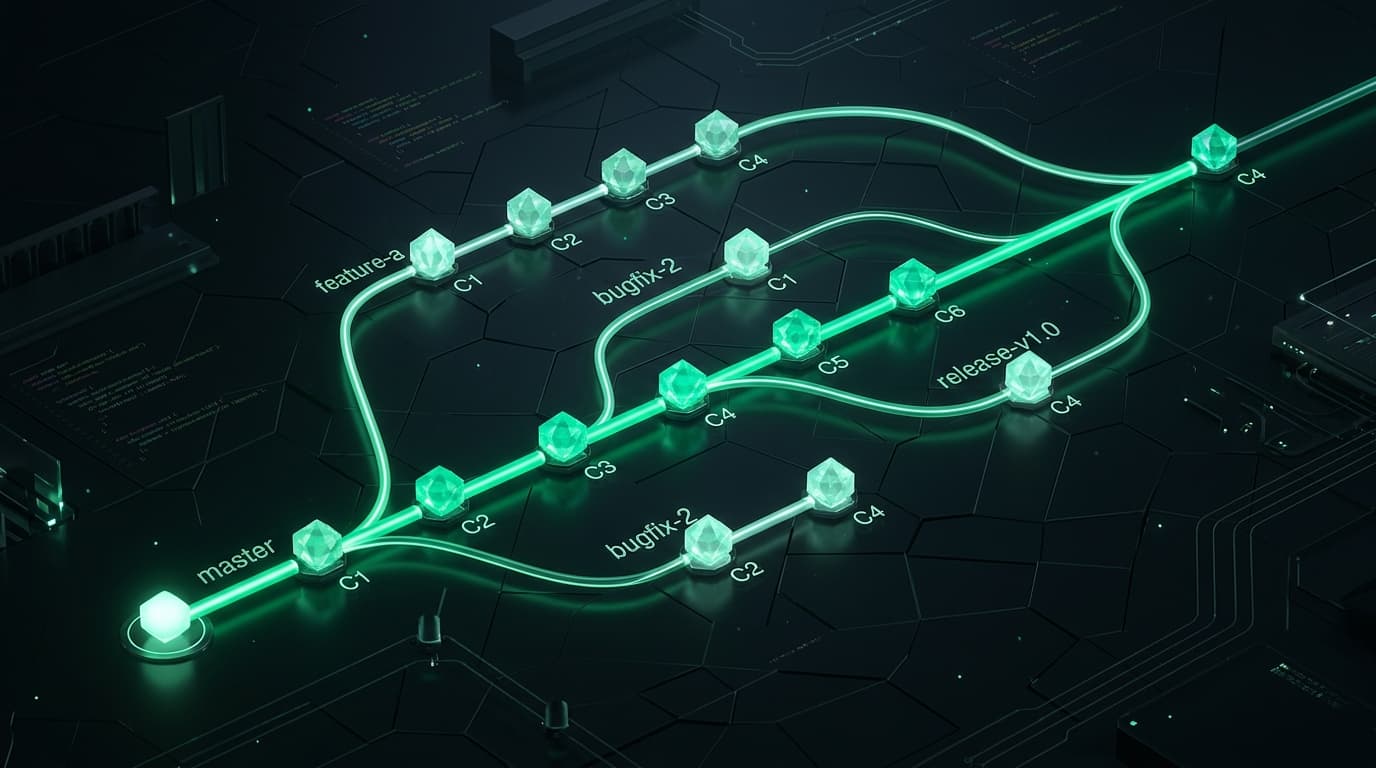
Learn Git from scratch — what it is, how to set it up, and the everyday commands you'll use forever.
If you've ever ended up with folders like project-final-v2 and project-REALLY-final, this article is for you. Git replaces that chaos with one folder and a full history of every meaningful change.
What is Git?#
Git is a version control system. It saves snapshots of your project over time so you can:
- Go back to any previous version
- See who changed what and when
- Work on features without breaking the main code
- Collaborate without emailing zip files
Think of Git like save points in a game. Each commit is a save. You can reload an old save without losing the whole game.
Without Git:
project/
project-backup/
project-final/
project-final-v2/
project-REALLY-final/
With Git: one folder + a full history of every meaningful change.
Git vs GitHub#
| Git | GitHub | |
|---|---|---|
| What | Software on your computer | Website / cloud service |
| Job | Track history locally | Host remotes, PRs, Issues, Actions |
| Need internet? | No (for local work) | Yes (to push/pull/collaborate) |
Your laptop (Git) ←→ GitHub (remote copy + collaboration tools)You can use Git without GitHub. You cannot get GitHub's full value without Git.
Other hosts exist (GitLab, Bitbucket) — same Git commands, different websites.
Core Concepts#
Repository (repo)#
A project folder tracked by Git. Contains your files plus a hidden .git/ directory (the database of history).
The three areas#
Working Directory     Staging Area (Index)     Repository (.git)
─────────────────     ────────────────────     ─────────────────
Files you edit   →    Files marked "ready"  →  Saved commits
with git add with git commit| Area | Meaning |
|---|---|
| Working directory | Files as you see them in the folder |
| Staging area | The next commit "shopping cart" — what will be saved |
| Repository | Permanent history of commits |
Commit#
A snapshot with:
- Unique ID (hash), e.g.
a1b2c3d - Author, date, message
- Pointer to the previous commit (forms a chain)
(A) ← (B) ← (C) ← (D) ← newest commit (usually where you are)HEAD#
A pointer to "where you are now" — usually the tip of the current branch.
Install & First-Time Setup#
Install#
# macOS (Homebrew)
brew install git

# Ubuntu / Debian
sudo apt update
sudo apt install git

git --version
Tell Git who you are#
git config --global user.name "Your Name"
git config --global user.email "you@example.com"
Use the same email as your GitHub account (or a GitHub noreply email) so commits link to your profile.
Useful defaults#
git config --global init.defaultBranch main
git config --global color.ui auto
git config --global pull.rebase false    # merge on pull (simple default)
See your config#
git config --list
git config --global --list| Scope | Flag | Where it applies |
|---|---|---|
| System | --system |
Whole machine |
| Global | --global |
Your user account |
| Local | (default in a repo) | One repository only |
Create or Clone a Repository#
Start a new repo in an existing folder#
mkdir my-app && cd my-app
git init
Creates .git/ and starts tracking history from here.
Clone an existing repo (from GitHub)#
git clone https://github.com/user/repo.git
git clone git@github.com:user/repo.git        # SSH
cd repo
git clone — Downloads the project and its full Git history, then sets origin as the remote.
The Daily Workflow#
This is 90% of what you'll do every day:
git status                  # what's changed?
git add file.txt            # stage one file
git add .                   # stage everything (careful)
git commit -m "message"     # save a snapshot
Step by step#
1. git status — Shows modified, staged, and untracked files. Run this often.
2. git add — Moves changes into the staging area.
git add index.html
git add src/                # stage a folder
git add -p                  # stage hunks interactively (advanced but useful)
3. git commit — Saves the staged snapshot permanently in history.
git commit -m "Add login form validation"First commit tip#
git add .
git commit -m "Initial commit"
Amend the last commit (only if not pushed yet, or you're sure)#
git add forgotten-file.txt
git commit --amend --no-edit     # keep same message
git commit --amend -m "New msg"  # change message
Rule: Don't amend commits that others already pulled — it rewrites history.
See What Changed#
git status — High-level: which files changed / staged.
git diff — Line-by-line changes not yet staged.
git diffgit diff --staged (or --cached) — Changes that are staged, ready to commit.
git diff --stagedgit log — Commit history.
git log
git log --oneline              # short one line per commit
git log --oneline --graph      # ASCII branch graph
git log -5                     # last 5 commits
git log --author="Yasir"
git show — Details of one commit (message + diff).
git show
git show a1b2c3d
Undo Safe Basics#
These are the safe "oops" tools for beginners. Deeper recovery (reset, reflog, recovering lost commits) belongs in a follow-up on advanced Git.
| Goal | Command |
|---|---|
| Unstage a file (keep edits) | git restore --staged file.txt |
| Discard unstaged edits in a file | git restore file.txt |
| Unstage everything | git restore --staged . |
Older docs may show:
git reset HEAD file.txt      # unstage (older style)
git checkout -- file.txt     # discard changes (older style)
Prefer git restore on modern Git.
Warning:
git restore file.txtthrows away uncommitted work in that file. There is no recycle bin.
Ignore Files (.gitignore)#
Some files should never be committed:
- Secrets (
.env, keys) - Dependencies (
node_modules/,.venv/) - Build output (
dist/,build/) - OS junk (
.DS_Store)
Create .gitignore in the repo root:
# dependencies
node_modules/
.venv/

# env / secrets
.env
.env.local
*.pem

# build
dist/
build/
__pycache__/

# OS / editor
.DS_Store
.idea/
.vscode/
git check-ignore -v file — Explains why a file is ignored.
If you already committed a secret by mistake:
- Rotate the secret (treat it as leaked)
- Remove it from Git tracking
- Add it to
.gitignore
Good Commit Messages#
Bad:
fix
updates
asdf
final
Good:
Add rate limiting to login API
Fix nginx 502 when upstream is down
Remove unused docker-compose volume
Simple formula:
<verb in imperative> <what changed and why it matters>Like an order: "Add…", "Fix…", "Update…", "Remove…"
Optional Conventional Commits style (nice for teams):
feat: add user invite endpoint
fix: correct CORS origin for staging
docs: explain reverse proxy headers
chore: bump node to 20 in Dockerfile
Quick Cheatsheet#
| Need | Command |
|---|---|
| Who am I? | git config user.name |
| New repo | git init |
| Copy remote repo | git clone <url> |
| What's going on? | git status |
| Stage file | git add <file> |
| Commit | git commit -m "msg" |
| Unstaged diff | git diff |
| Staged diff | git diff --staged |
| History | git log --oneline |
| Unstage | git restore --staged <file> |
| Discard edits | git restore <file> |
What's Next?#
You can now save snapshots alone. The next step is working on features safely with branches — creating them, switching between them, and merging without breaking main.
That branching workflow will be covered in a follow-up article.
Related Articles
All articlesGitHub Basics — Remotes, PRs & Team Workflow
Connect local Git to real team workflows on GitHub: SSH vs HTTPS, remotes, fetch/pull/push, clone vs fork, pull requests, code review, branch protection, Issues, and how PRs trigger CI/CD.
Writing Your First Dockerfile — The Right Way
A production-ready Dockerfile for Node.js applications, covering every instruction, layer caching optimization, and the dist/server.js vs npm start trap that most tutorials get wrong.
What is Docker and Why Should You Care?
A beginner-friendly introduction to Docker covering containers vs VMs, images, layers, Docker Hub, and the core concepts you need before writing your first Dockerfile.